

Understanding Robot Trading in Forex Markets
Explore how robot trading automates forex decisions 🤖, their pros and cons, key features, strategies, and tips for smarter trading in South Africa’s forex market.
Edited By
Laura Mitchell
MetaTrader stands out as one of the most popular trading platforms across the globe, thanks to its versatility and ease of use. Whether you're trading forex, indices, commodities, or CFDs, MetaTrader offers a range of tools tailored for both beginners and experienced traders.
Before you start trading, you'll need to download and install MetaTrader on your preferred device. The platform supports various operating systems, including Windows, Mac, Android, and iOS, allowing seamless access from desktops, laptops, tablets, or smartphones. This flexibility means you can monitor the markets and execute trades while on the move or comfortably seated at your desk.
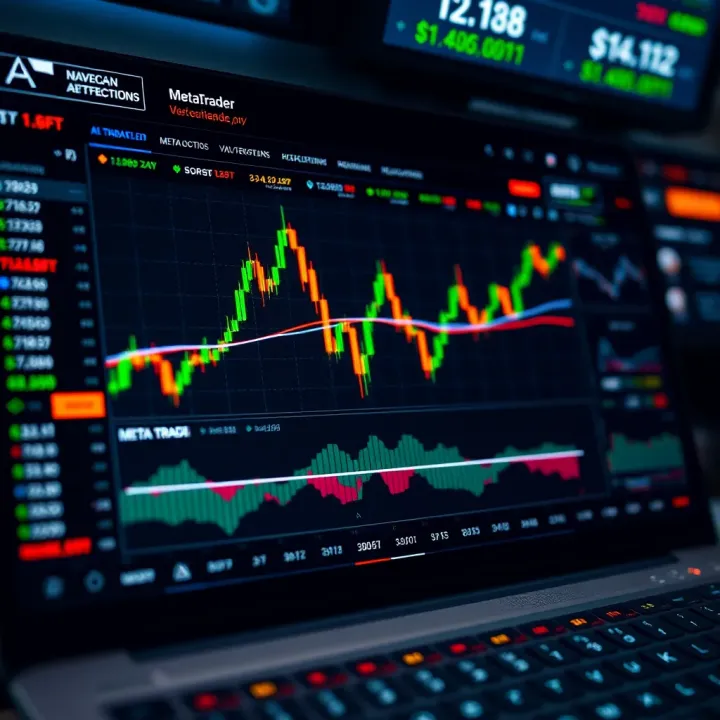
Setting up MetaTrader involves a straightforward process but does require a few key steps to ensure everything runs smoothly. Once installed, you'll be able to open demo accounts to practice trading without risking real money. When you’re ready, linking a live trading account with your broker is the next step, enabling you to trade with real capital.
Understanding the core features of MetaTrader is essential to making the most out of it. It includes live price charts, technical indicators, automated trading through Expert Advisors (EAs), and flexible order types. These tools give you the ability to analyse market trends, manage risks, and automate strategies with precision.
Starting strong with MetaTrader comes down to selecting the right version for your device and following the installation steps carefully. A smooth setup leads to better trading experiences without technical hiccups.
In this article, we’ll guide you through each step of downloading MetaTrader for your device, setting it up properly, and exploring its basic functionalities. By the end, you’ll be equipped to navigate the platform confidently and start your trading journey.
Choosing the correct MetaTrader version for your device isn’t just a box-ticking exercise—it impacts your trading efficiency and experience. Picking the wrong version can result in lag, compatibility issues, or missing out on useful features. Whether you're on a desktop or mobile, ensuring your MetaTrader software fits your device’s capabilities can save you from headaches down the line. For example, older laptops might struggle with MetaTrader 5’s more demanding features, while a newer smartphone can usually handle both MetaTrader 4 and 5 without trouble.
MetaTrader 4 (MT4) and MetaTrader 5 (MT5) share a lot of common ground, but they serve slightly different needs. MT4 was originally designed for forex trading and is well-loved for its simplicity and reliability. MT5, on the other hand, offers more advanced tools like additional timeframes, enhanced charting options, and support for a broader range of markets such as stocks and commodities. While MT4 handles standard trading tasks efficiently, MT5 adds depth for those dabbling beyond forex.
Knowing which version fits your trading style is key to making the most of the platform.
Beginners often find MT4 user-friendly, with fewer buttons and simpler layouts that reduce the learning curve. Many brokers in South Africa still favour MT4 for its large user base and stability, which suits traders just starting to explore the markets. Meanwhile, advanced traders might lean towards MT5 for its wider instrument range and technical features. The multi-threaded strategy tester in MT5, for example, allows faster backtesting of automated trades, something serious traders appreciate when fine-tuning their algorithms.
MetaTrader supports both Windows and Mac, but with some nuances. Windows users get the full experience, as both MT4 and MT5 were primarily developed for this OS. Mac compatibility came later, mainly through emulators or native apps with fewer updates. If you're on a Mac, pick the version that your broker officially supports and ensure your OS is up to date—for instance, macOS Catalina (10.15) or higher tends to run MetaTrader without much fuss.
Mobile trading is popular in South Africa given our mobile-first lifestyle. MetaTrader apps are available for Android via Google Play Store and iOS through the Apple App Store. Both platforms offer similar functionality, but watch out for differences in app updates or features depending on your device's OS version. For instance, some older Android devices might miss out on the latest app features due to compatibility limits.
Your device’s specs matter too. Smooth operation generally calls for at least 2GB RAM and a dual-core processor for desktops, while modern smartphones usually handle MetaTrader well with 2GB RAM or more. Running MetaTrader on devices with under 1GB RAM or old processors can cause lag, especially when multiple charts or indicators are open. To avoid slow trading decisions or missed opportunities, aim for a device that meets or exceeds these minimum specs.
Making an informed choice about the MetaTrader version for your device will pay off in seamless trades, quicker analysis, and fewer technical hiccups. Keep these points in mind before downloading so your trading starts on the right foot.
Knowing exactly how to download MetaTrader is key to getting your trading up and running without hassle. Whether you’re aiming to trade on your desktop or mobile device, following a clear step-by-step guide ensures you avoid pitfalls like downloading unofficial software that might contain malware. This part of the article walks you through the essentials you need to get MetaTrader installed correctly and ready for use.
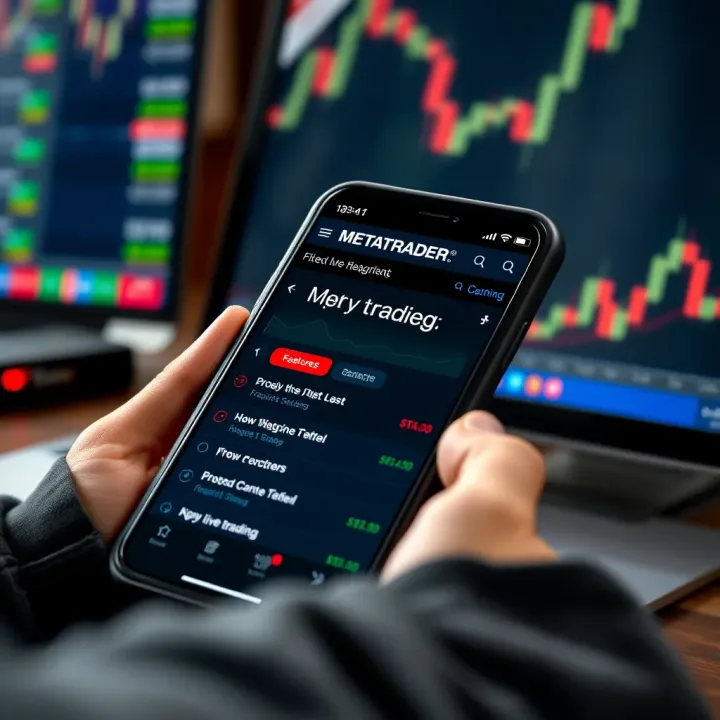
First things first, always download MetaTrader from the official website. This reduces the risk of getting a dodgy version that could compromise your computer or data. The official platform is well-maintained and provides updates that keep your setup secure and functional. Trying to find it through third-party sources might seem easier but can land you in hot water, especially since fake MetaTrader sites are not unheard of.
Once you’re on the official site, check what operating system your desktop runs. MetaTrader offers different installation files for Windows and Mac. For instance, if you’re running Windows 10 or 11, you’ll want the Windows installer; Mac users will look for the Mac-compatible file. Picking the wrong version can result in install failures or sluggish performance. Also, check that your system meets the minimum requirements—generally, a few GB of free space and updated drivers, but it's best to confirm.
After downloading the installer, open it and follow the prompts carefully. This usually involves agreeing to the licence terms, choosing an installation folder, and letting the program install the base files. Don’t rush this step; it’s straightforward if you pay attention. Once installed, the first time you open MetaTrader, you’ll be guided through initial setup—like choosing language and connecting to a broker. Taking your time here means you won’t have to retrace steps later on.
For mobile traders, MetaTrader apps are available on both Google Play Store for Android and Apple App Store for iOS. Always search for "MetaTrader 4" or "MetaTrader 5" officially provided by MetaQuotes Software Corp. Downloading from official app stores guarantees automatic updates and better security. Avoid downloading APK files from random sites as this increases risk.
Installation on mobile is simpler than desktop. Once you hit 'install,' the app downloads and installs automatically. Keep in mind that you’ll need enough storage—around 100 MB typically—to accommodate the app and additional data. After installation, open the app and log in with your broker details or open a demo account to start practising. The interface is adapted for touch, making navigation intuitive right from the start.
During installation or initial app launch, MetaTrader may request permissions such as access to storage (to save charts or data), notifications (for trade alerts), and internet connectivity. Approve necessary permissions to ensure smooth functioning; for example, without network access, the app can't update live market data. Also, it helps to adjust notification settings so you only get relevant trade alerts and aren’t constantly disturbed.
Downloading and setting up MetaTrader with care helps avoid technical glitches and security threats. From official sources to the right installation files and enabling smart permissions, each step matters to have a hassle-free trading experience.
Getting your MetaTrader account set up is the first real step towards trading success. It ties you to a broker, opens up access to financial markets, and allows you to practice and then trade with real money – all in a secure environment. Whether you are trying out MetaTrader for the first time or moving to live trading, the account setup process is critical to ensure a smooth, trustworthy experience.
A demo account lets you trade with virtual funds, giving you a risk-free way to get the hang of MetaTrader’s features and test trading strategies. This is especially useful if you are new or testing a new technique without risking your capital. Dukes of all levels use demo accounts to practise reading charts, placing orders, and playing around with indicators.
Setting one up usually involves registering through your chosen broker’s website or the MetaTrader platform. You'll provide basic details, then receive login credentials to access the demo account on your device. A demo account mirrors live market conditions, so the experience remains as realistic as possible. You can track your trades, tweak your approach, and build confidence safely.
Choosing a broker compatible with MetaTrader is a major step. Many South African brokers such as IG, HotForex, and Plus500 support MetaTrader 4 or 5, each with varying spreads, leverage, and asset classes. Beyond compatibility, consider the broker’s reputation, fee structures, and customer support, since these affect your trading journey significantly.
Once you’ve picked a broker, the next step is completing the Know Your Customer (KYC) process. This includes submitting proof of identity, address, and sometimes proof of income. Brokers need to verify these to comply with South African financial regulations. While it might feel like paperwork hassle, it protects you from fraud and ensures a safe trading environment.
Funding your account in South Africa can be done through various methods:
EFT (Electronic Funds Transfer): The most common way, but often slower with clearance times of up to two business days.
Debit or Credit Cards: Instant deposits that are convenient but sometimes incur fees.
Instant EFT services: Platforms like Ozow or Yoco enable fast transfers directly from your bank.
Popular e-wallets: Some brokers accept PayPal or Skrill, though these might not be widespread locally.
A well-funded account means you’re ready to place trades promptly without waiting on clearance uncertainties.
Setting up your MetaTrader account properly, from practising with a demo to making your first deposit, builds the foundation for confident and efficient trading in South Africa’s dynamic markets.
Being familiar with MetaTrader’s basic features and navigation is key to trading effectively. The platform packs a range of tools that help you analyse markets, place trades and manage your positions, all from a single interface. Mastering these elements early on ensures you don’t miss chances or make costly mistakes.
Chart windows and timeframes form the backbone of MetaTrader’s interface. These charts display price movements for different assets over specific periods, from one-minute to monthly intervals. For example, if you’re day trading on the JSE, switching between 5-minute and 15-minute timeframes can give you a sharper picture of short-term price swings versus broader trends. You can open multiple charts simultaneously, allowing you to monitor various instruments side by side without losing context.
The Market Watch panel shows a live list of available trading instruments with their current bid and ask prices. It's straightforward yet powerful, letting you keep a close tab on those assets you’re keen on. For instance, if you’re tracking the Rand-Dollar exchange rate or the price of platinum, Market Watch gives you quick updates before you open your chart. It also provides shortcuts to open charts or place trades directly, making your workflow quicker.
When it comes to deeper analysis, accessing indicators and tools is where MetaTrader shines. From simple moving averages to more advanced oscillators like the RSI (Relative Strength Index), you can apply a variety of tools to your charts with just a few clicks. Using these helps you spot sell or buy signals based on historical price data. For example, a trader might add Bollinger Bands to gauge volatility or the MACD to identify momentum shifts. Custom tools can also be downloaded and added, tailoring the platform to your strategy.
Executing market and pending orders is the essence of trading on MetaTrader. A market order buys or sells at the current best price, useful when you want swift execution. Pending orders, on the other hand, let you set specific price levels at which trades will automatically execute, such as a buy-limit order waiting for a dip to R15,000 on a stock before going live. This is especially helpful when you can’t watch the market 24/7 but want to catch specific price moves.
To manage risk, setting stop-loss and take-profit levels is indispensable. A stop-loss closes your position at a predetermined loss level, preventing bigger blows to your account. Likewise, take-profit locks in gains once the price hits your target. For example, if you buy a share at R12,500, setting a stop-loss at R12,000 limits your potential loss, while a take-profit at R13,000 secures your profit point. These orders protect your trading capital without needing to monitor constantly.
Finally, monitoring open positions and account balance lets you keep an eye on your current trades and overall financial standing. MetaTrader displays your real-time profit or loss per position, margin levels, and free balance all in one place. By regularly checking these, you can adjust your strategy or close positions before losses snowball, which is crucial during volatile times such as Eskom-related market jitters.
Knowing how to navigate MetaTrader and use its core features confidently saves you time and headache. It lets you focus on what matters most—making timely, informed trades that fit your financial goals.
Using MetaTrader safely and efficiently is essential for any serious trader in South Africa. The platform handles sensitive financial information and facilitates real-time trading, so you must protect your account and optimise the system for reliable performance. Below are practical steps to help you maintain security and get the most out of MetaTrader.
Using strong passwords and two-factor authentication is a simple but powerful safeguard. A strong password combines upper- and lowercase letters, numbers, and symbols, making it harder for hackers to guess or crack. Avoid obvious choices like "password123" or your birthday. Besides, enabling two-factor authentication (2FA) adds an extra spotlight of protection. When 2FA is active, logging in requires a second form of verification — often a code sent to your mobile or generated by an app. This means even if someone gets hold of your password, they can't access your account without that second step.
Beware of fake MetaTrader downloads and scams. Many scammers create websites or apps that mimic the official MetaTrader platform to steal your login details or install malware on your device. Always download MetaTrader from the official MetaQuotes website or trusted app stores like Google Play or Apple App Store. Ignore unsolicited emails or messages offering “exclusive” MetaTrader versions or broker links — these could lead to fraud or data theft. If in doubt, check your broker’s official website or contact their support directly.
Regular updates and backups ensure your MetaTrader software runs smoothly and is protected from vulnerabilities. MetaTrader developers frequently release updates fixing bugs or improving security, so don’t skip these. Ignoring updates might slow your platform or leave it open to cyberattacks. Similarly, backing up your profiles, charts, and settings can save hours if your system crashes or you reinstall MetaTrader. You can export your profile files and keep them on an external drive or cloud storage for easy recovery.
Customising settings for faster trading helps you avoid delays, which can cost money in fast markets. Simple tweaks like limiting the number of indicators on your charts, closing unused tabs, or adjusting polling intervals can boost platform speed. For example, lowering the chart bars loaded by default can reduce memory load without losing essential data. Also, configure your hotkeys for quick order execution or closing positions. These adjustments make your trading more responsive, especially during volatile market hours when every second counts.
Keeping your MetaTrader platform secure and agile isn’t just technical housekeeping — it’s part of being a smart trader who protects investments and seizes market opportunities effectively.
By following these security and performance tips, you’ll set yourself up for a smoother and safer trading experience on MetaTrader, no matter your level or style.
Explore how robot trading automates forex decisions 🤖, their pros and cons, key features, strategies, and tips for smarter trading in South Africa’s forex market.
Explore synthetic trading 🛠️ to create positions mimicking others. Learn strategies, risks, and examples across assets for savvy trading decisions 📊.
📈 Thinking of starting a trading series? Explore market types, key concepts, and tips to create content that truly connects with your audience.
Discover practical strategies for trading synthetic indices 📈. Learn risk control, adapt to market patterns & access handy PDF resources tailored for South African traders.
Based on 14 reviews